Blocks and Feedback
How Blocks work
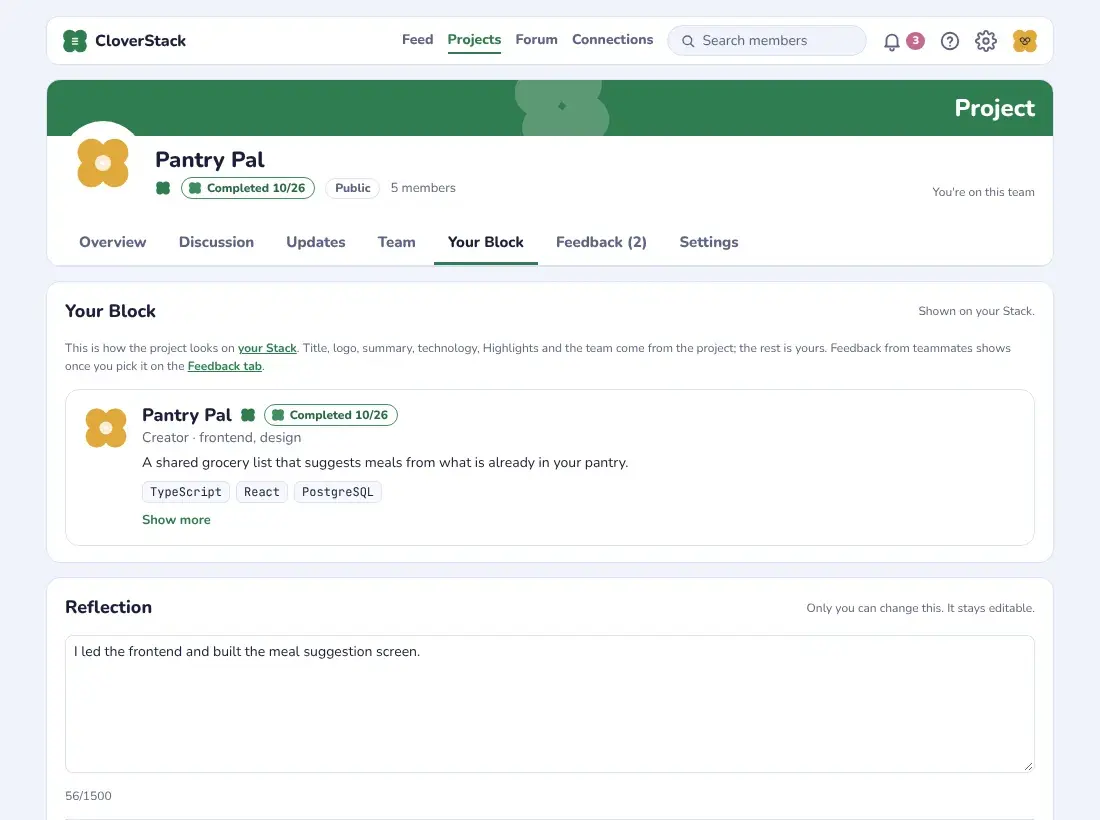
A Block is how a project appears on your Stack.
What's in a Block
- From the project: title, logo, summary, technology, Highlights and the team.
- Your role on the project.
- Optional "what I did" tags, like frontend or research, to show your part beyond your role.
- Your Reflection: your own words about what you contributed, plus up to 4 images of your part.
- Feedback from teammates that you chose to show.
Projects built on CloverStack show the CloverStack logo next to their title.
Edit your Block
- Open the project and choose the Your Block tab.
- Write your Reflection and pick your tags. Images open once the project is Complete.
- You can change these any time, even after the project is Closed.
When Blocks show
Limited and Public projects show as Blocks, with an Ideation or In Progress label until they're Complete. Private projects never show. To hide one, see Choose which projects show.