Settings and privacy
Two-step sign-in
Two-step sign-in asks for a 6-digit code from an authenticator app each time you sign in, so your password alone isn't enough. We suggest turning it on.
Turn it on
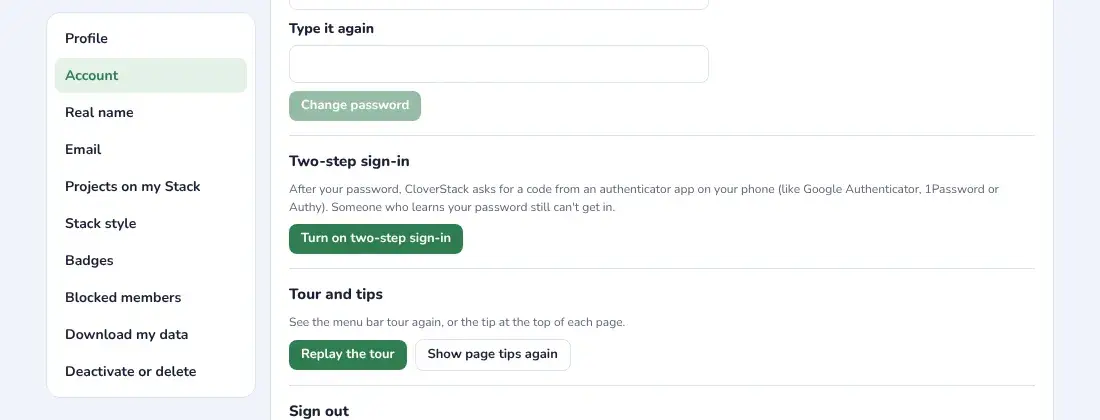
- Open Settings and choose Account.
- Under Two-step sign-in, press Turn on two-step sign-in.
- Scan the QR code with an authenticator app, like Google Authenticator or 1Password.
- Type the 6-digit code the app shows.
Also in Account
Account is also where you change your email or password, replay the tour, and sign out. Forgot your password? Use Forgot your password? on the sign-in page.